If you're running into lag spikes or frame drops, our team may ask you to capture an FPS profiler dump. The profiler branch records what's happening during stutters, which helps us pin down the cause. Here's how to capture one and send it over.
Only switch to the profiler branch when a Lunar Client staff member asks you to.
When you're done, you can switch back to your normal branch the same way.
Switch to the profiler branch
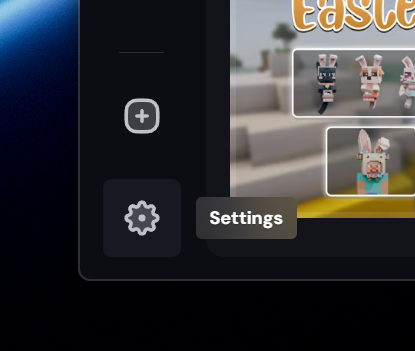
- Open the Lunar Client Launcher and go to the Settings page.
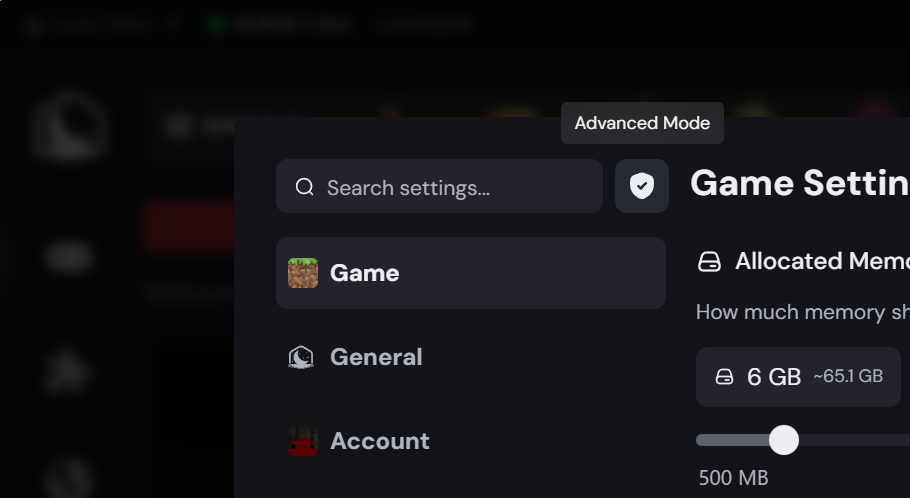
- Click the shield icon to enable Advanced Mode if it isn't already on. The indicator turns purple once it's enabled.
- In the Game section of Settings, find the Branch text box and change it to
profiler.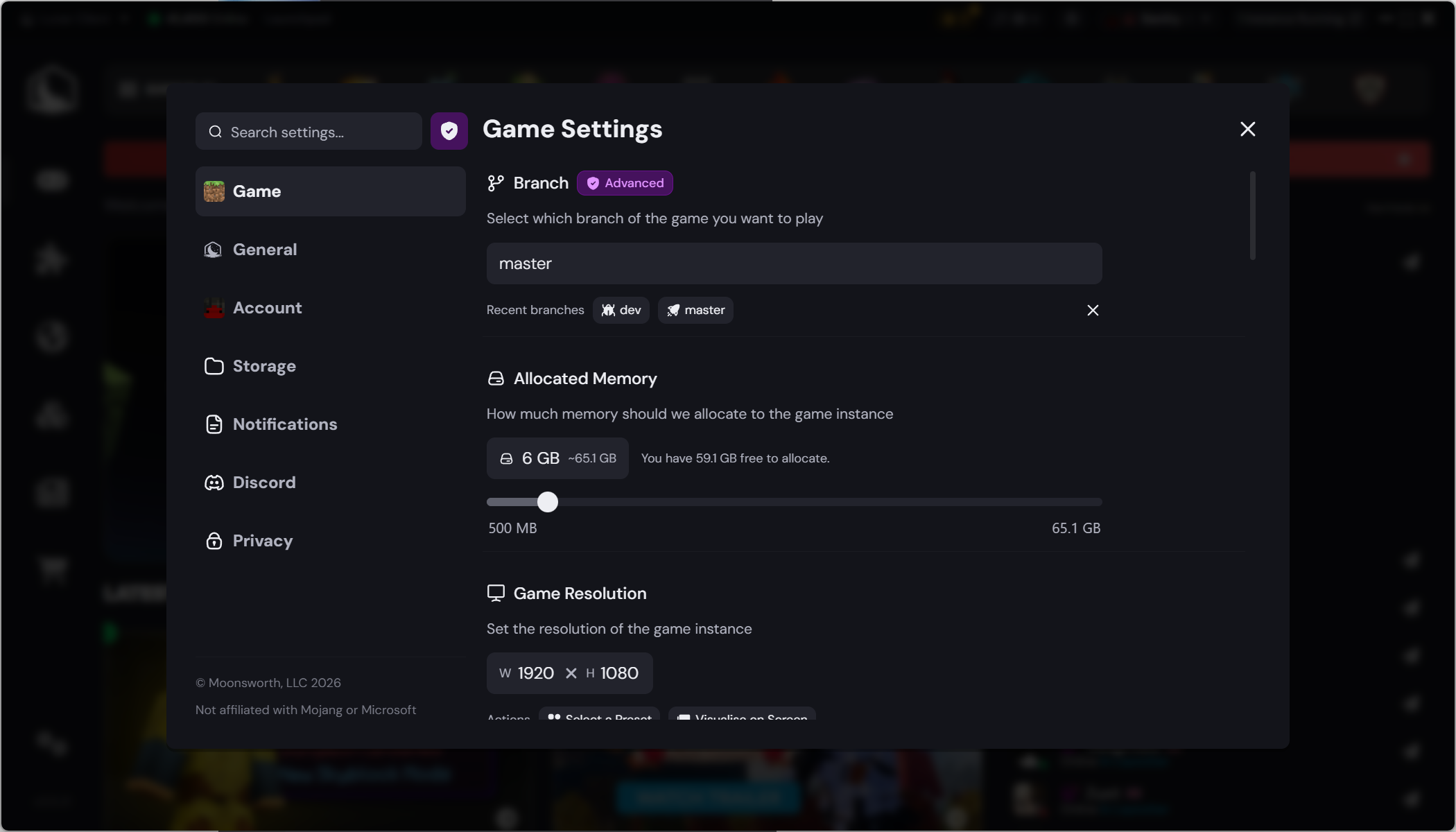
- You'll see a pop-up confirming your branch was changed successfully.

Play until you start to lag or stutter
Launch the game on the profiler branch and play as you normally would until you run into the lag spikes or frame drops you're trying to capture.
Run the FPS data command
As soon as you experience the lag spikes or frame drops, run this command in-game:
/lcfpsdata
Let the profiler finish running.
Find and send the FPS dump file
- On Windows, the profiler automatically opens the folder containing your FPS dump file once it finishes.
- On Mac, open the Lunar Client Launcher, click the dropdown in the top-left corner, and choose Open Application Folder. From there, follow this path:
.lunarclient/lunar-fps-debug/
In that folder, you'll find a file named like fps-dump-XXXX-XX-XX_XX-XX-XX.zip.
Send that .zip over to us and we'll take a look.
Was this article helpful?
That’s Great!
Thank you for your feedback
Sorry! We couldn't be helpful
Thank you for your feedback
Feedback sent
We appreciate your effort and will try to fix the article